Setup
Once per ARN. Then it’s one click a month.
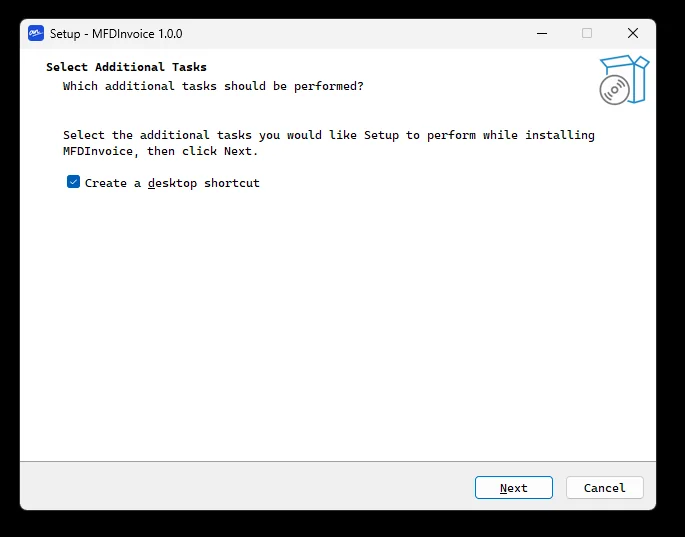
Run the installer
Open the file you downloaded. If Windows says “Windows protected your PC”, press More info, then Run anyway.
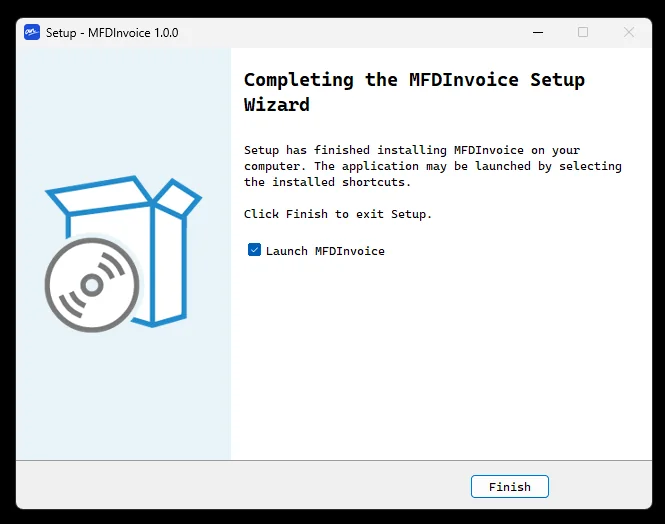
Open it
Leave Launch MFDInvoice ticked and press Finish.
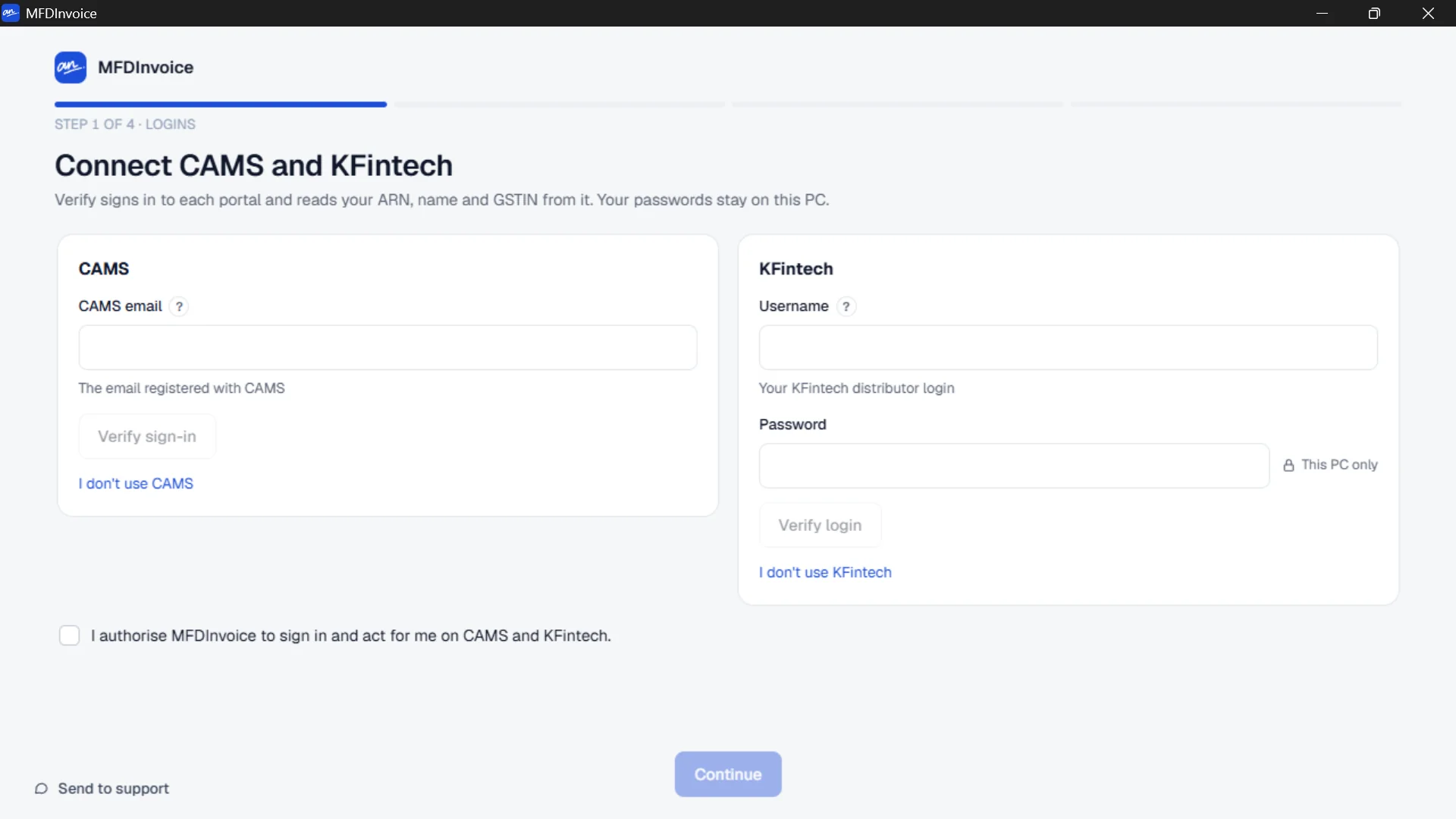
Your CAMS and KFintech logins
Your CAMS email, and your KFintech username and password. Your passwords stay on your PC.
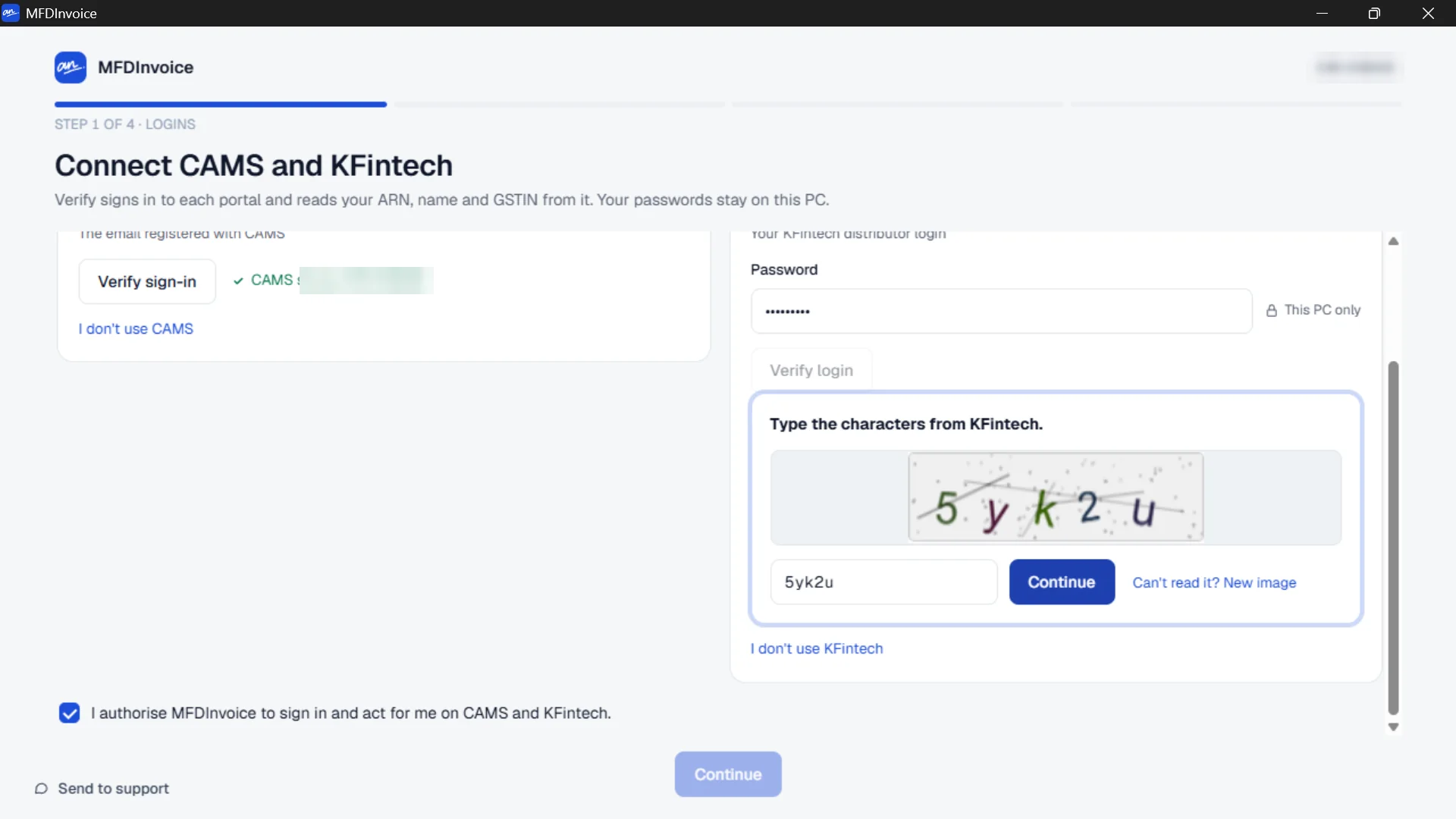
Verify each one
Verify signs in to the portal. KFintech shows a few characters: type them.
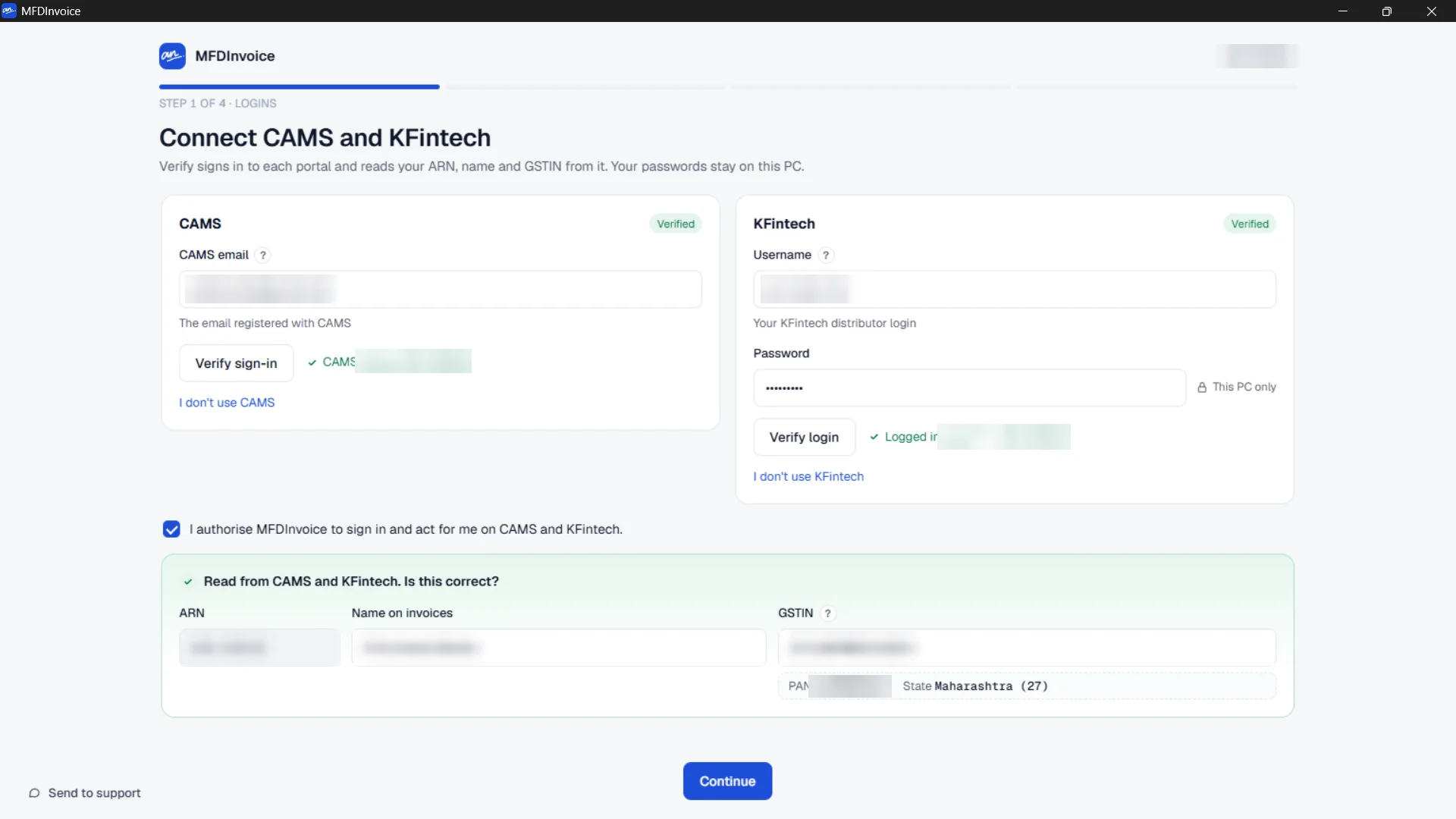
Your details, read from the portals
Your ARN, name and GSTIN. Check them, tick that you authorise MFDInvoice, and press Continue.
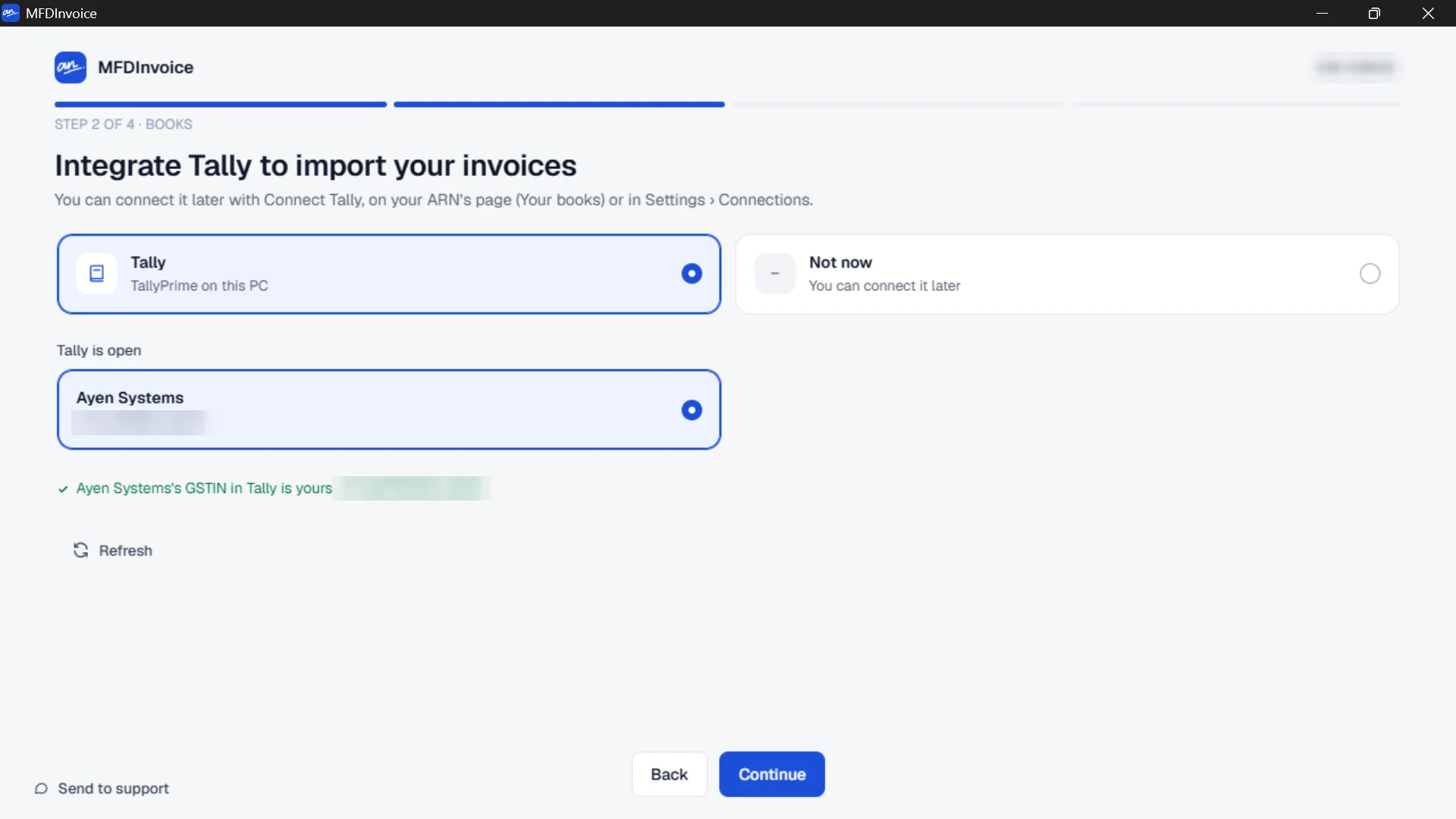
Tally
Open TallyPrime and pick your company: its GSTIN is checked against yours. No Tally? Not now.
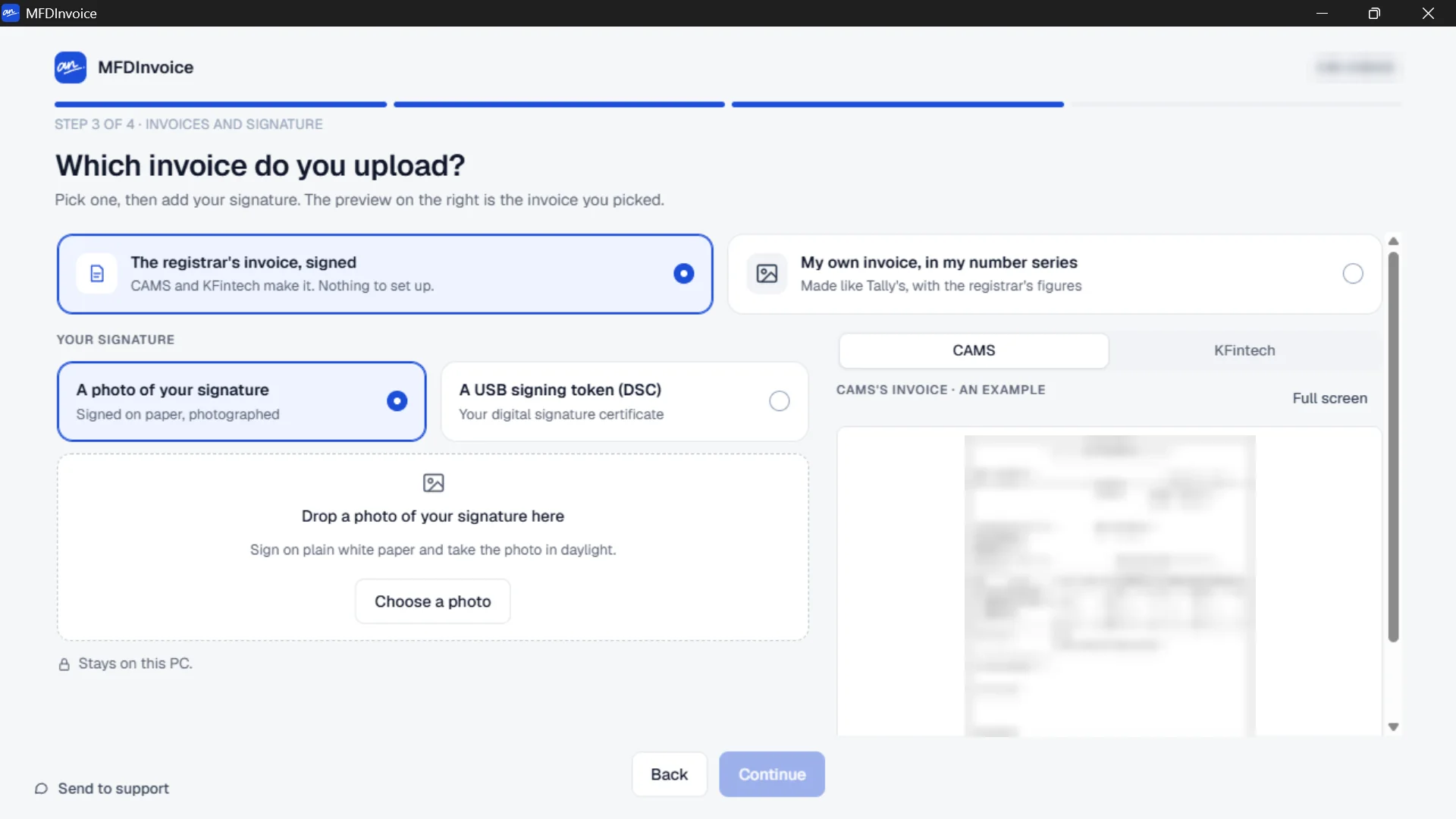
Which invoice you upload
The registrar’s invoice, signed, or your own, in your number series. The preview is the invoice you picked.
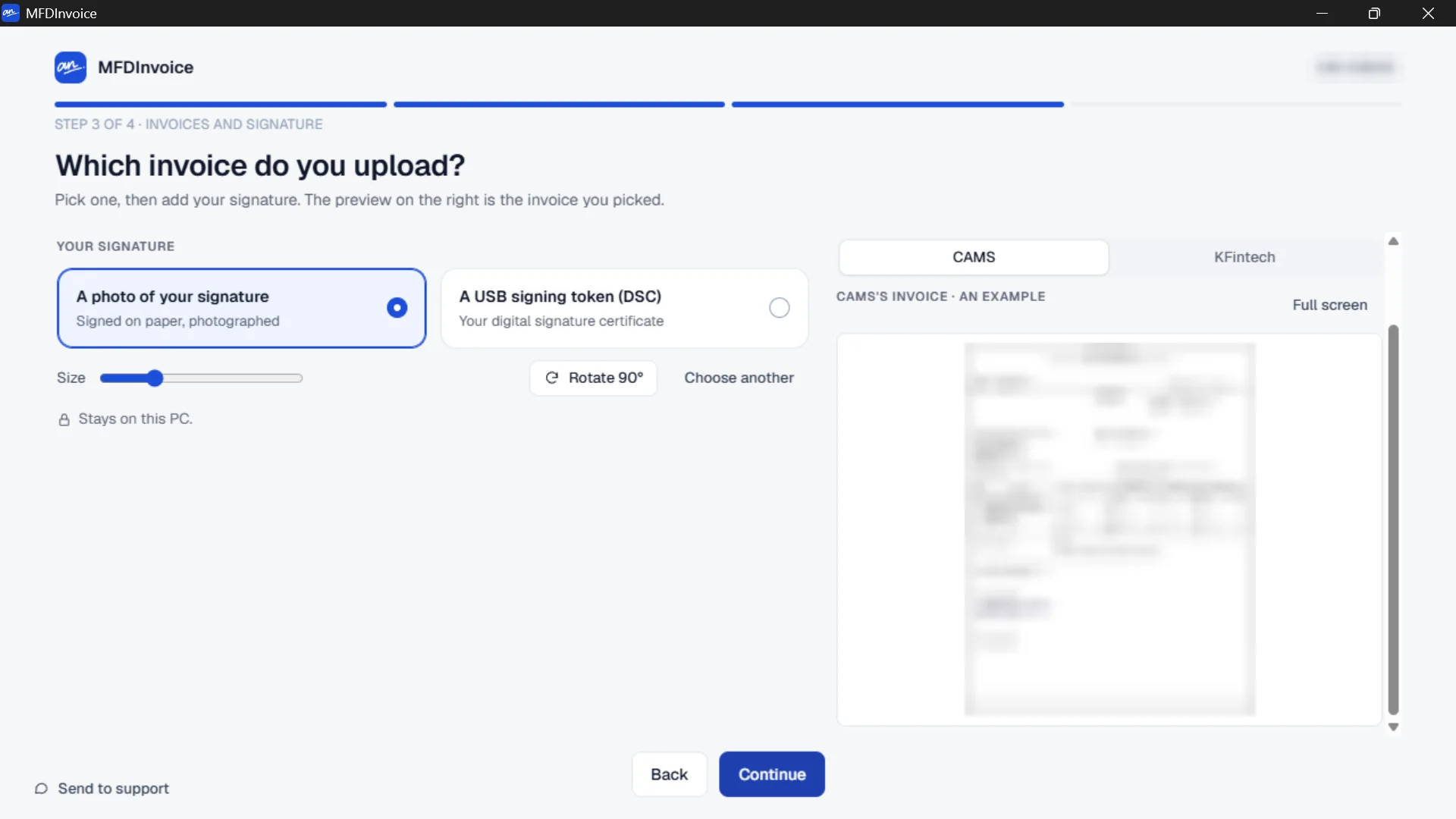
Your signature
A photo of your signature on white paper, or your USB token (DSC). The preview shows where it goes.
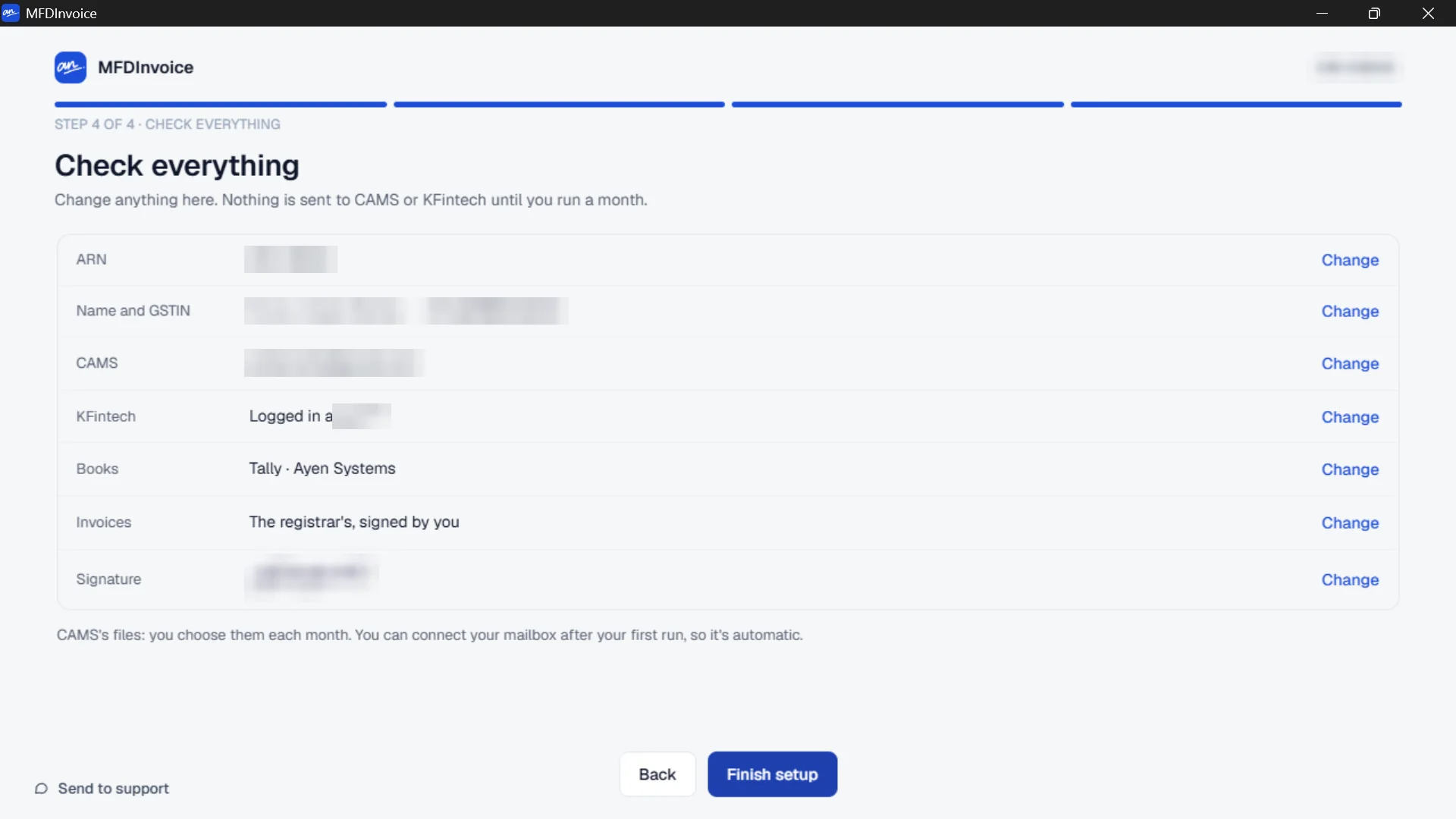
Check everything
Change anything, then press Finish setup. Nothing goes to CAMS or KFintech until you run a month.
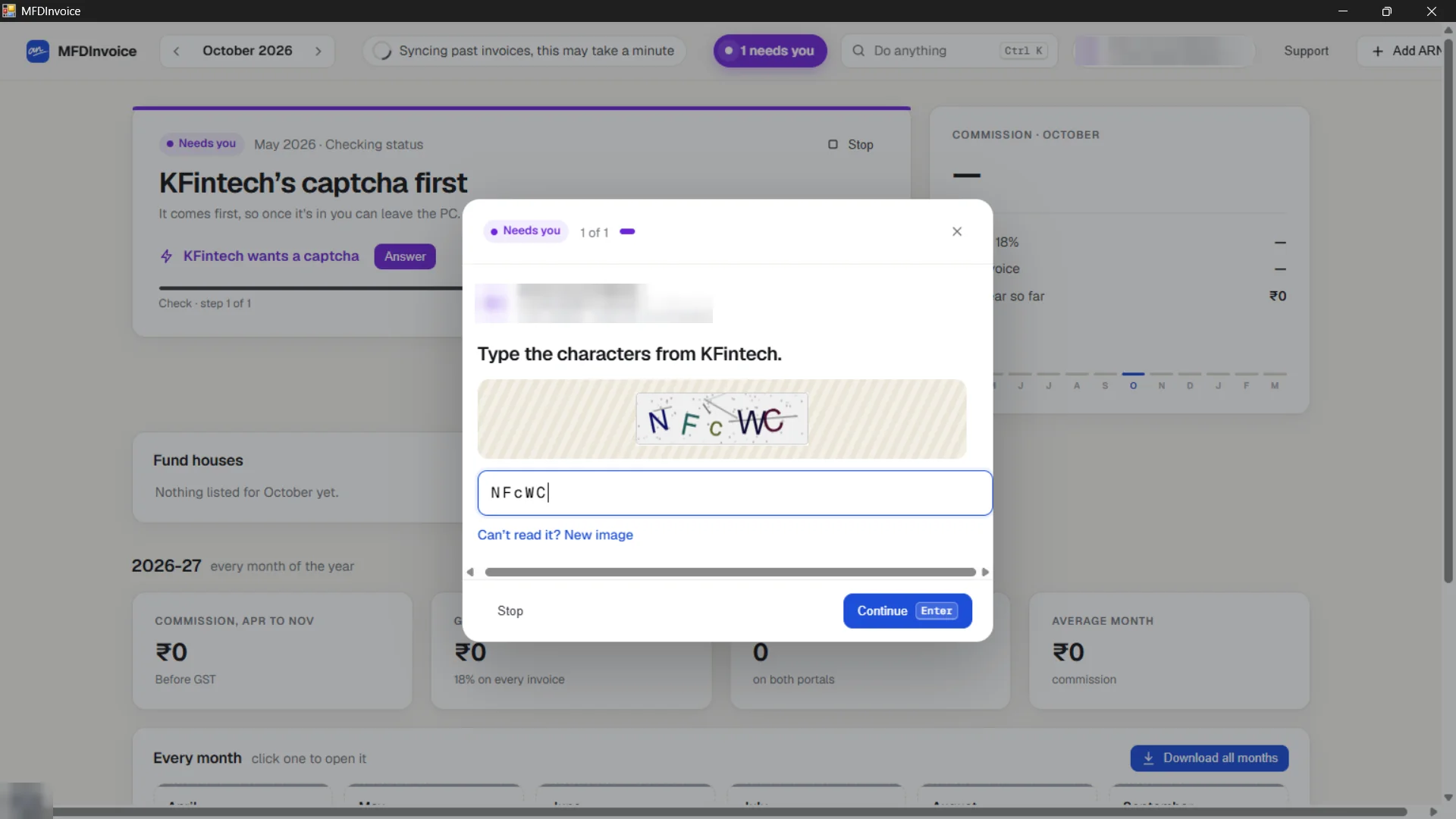
Your year, read in
Right after setup it reads this year’s months from CAMS and KFintech; KFintech asks for its characters once. In a hurry? Click the line at the top, Stop sync, run your month, then Continue sync.
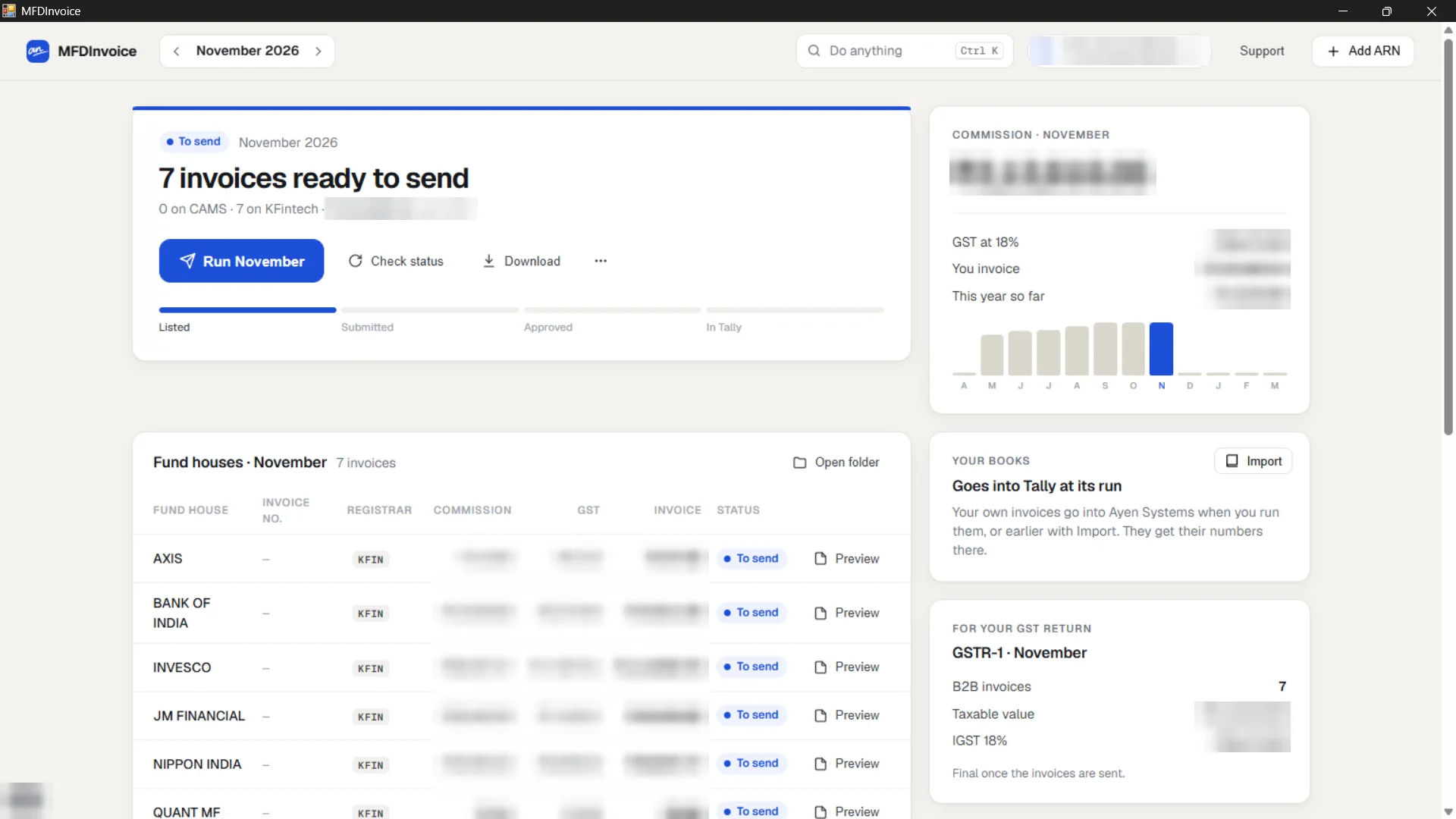
Run your month
Your month, ready to send. Press Run. Check status shows what CAMS and KFintech say about it.
CAMS’s mail, read by itself
CAMS sends its invoices by email. Connect your Gmail once, at your first run, and every month’s mail is read when it comes.
More than one ARN? Press Add ARN at the top of the app. Stuck? Write to us